Hi Marc,
Here’s a few options for you:
Option 1: Label the drops in Studio with AI (no splitting needed)
Studio has a built-in Audio labeling with AudioSet block. It uses the open source Audio Spectrogram Transformer (AST) model, and AudioSet includes a Drip class. The block’s code is open source too.
First, tag your drop samples with metadata so the AI labeling action can find them:
- Go to Data acquisition > Dataset. Click the filter icon above the sample list, select Labels, tick only
drop, and apply the filter.
- Click the multi-select icon above the list, then tick the box in the header to select every sample in the filtered list. Choose Add metadata, enter
label as the key and drop as the value, and save.
- Do the same on the Test tab.
Note: AI labeling replaces each sample’s single drop label with drop and noise regions, but the label: drop metadata stays. You can still find your original drop recordings later with the metadata filter in Dataset. If you record more drops, tag them the same way and run the action again.
Then create the AI labeling action:
- Go to Data acquisition > AI labeling and click + Add new label action.
- For Step 1, choose Audio labeling with AudioSet.
- Set the parameters:
-
Labels of interest: replace
speech and music with these two lines:Drip (drop)
The name in parentheses renames AudioSet’s label to your own.
-
Other label:
noise
-
Window size (ms) and Window stride (ms): change the default of 2000 to something shorter, such as 500, so each drop gets its own short region.
-
Minimum confidence threshold: start at the default of 0.2.
- Set Run AI labeling on to Data, filtered by metadata, and pick the key
label with the value drop. The Total results count should match the number of drop samples, and your other classes are left alone.
- Click Label preview data and listen to a few results. If it misses drops, lower the threshold. If it labels silence as
drop, raise it.
- (Optional) Under Set metadata after running AI labeling, enter
labeling-source: audioset. This marks which samples were AI-labeled, so you can filter them later or compare experiments with and without them.
- Click Label all data.
Tip: Labels of interest must use exact AudioSet names, one per line with no blank lines. Type them by hand rather than pasting. If the job fails, the bottom of the job log shows Invalid label: "..." with the line it couldn’t match.
Your 60-second files stay whole. Each one becomes a multi-label sample, with the drips labeled drop and the quiet gaps labeled noise. Then go to Create impulse and set multi-label handling to Use label X if anywhere present in the window with drop selected. Any window containing a drop is labeled drop, and the silent windows teach the model what a quiet room sounds like.
Option 2: Run Split sample on every file with a script
Split sample uses two API endpoints, Find segments and Segment sample, so a script can run it on all your files at once. Get your API key from Dashboard > Keys:
import requests

API_KEY = "ei_..."        # Dashboard > Keys
PROJECT_ID = 12345
LABEL = "drop"
CATEGORY = "training"     # run again with "testing"
SEGMENT_LEN = 1000        # ms, match your impulse window size

BASE = f"https://studio.edgeimpulse.com/v1/api/{PROJECT_ID}"
HEADERS = {"x-api-key": API_KEY, "Content-Type": "application/json"}

samples, offset = [], 0
while True:
    r = requests.get(f"{BASE}/raw-data", headers=HEADERS, params={
        "category": CATEGORY, "labels": f'["{LABEL}"]',
        "limit": 100, "offset": offset}).json()
    samples += r["samples"]
    if len(r["samples"]) < 100:
        break
    offset += 100

for s in samples:
    seg = requests.post(f"{BASE}/raw-data/{s['id']}/find-segments", headers=HEADERS,
                        json={"shiftSegments": True, "segmentLengthMs": SEGMENT_LEN}).json()
    if not seg.get("success") or not seg["segments"]:
        print(f"Sample {s['id']}: no segments found")
        continue
    res = requests.post(f"{BASE}/raw-data/{s['id']}/segment", headers=HEADERS,
                        json={"segments": seg["segments"]}).json()
    print(f"Sample {s['id']}: {len(seg['segments'])} segments",
          "OK" if res.get("success") else res.get("error"))
Splitting marks each original sample as deleted. You can get an original back with Crop sample on one of its segments, but try the script on a clone of your project first.
Option 3: Split the files before uploading (Audacity)
If you’d rather do it offline, the free Audacity editor can do it:
- Open a recording and go to Analyze > Label Sounds. Set the threshold and minimum silence so each drop gets its own label.
- Go to File > Export Audio and choose Multiple files, split by labels. Each drop is saved as its own WAV file.
- While you’re there, resample to 16 kHz (Tracks > Resample) so the drops match your Portenta recordings.
- Upload the files with the
drop label.
Then check the results in Studio
- Add 5 to 10 minutes of quiet-room recordings from your Portenta to
noise, unless Option 1 already did this for you.
- In Data acquisition, use the Length filter to find clips that are too short or too long. Disable any clips that don’t contain a drop instead of deleting them, so you can bring them back later.
- After you generate features, check the Feature explorer. Silence and drops should form separate clusters. Click any
drop point that lands in the silence cluster to listen to it.
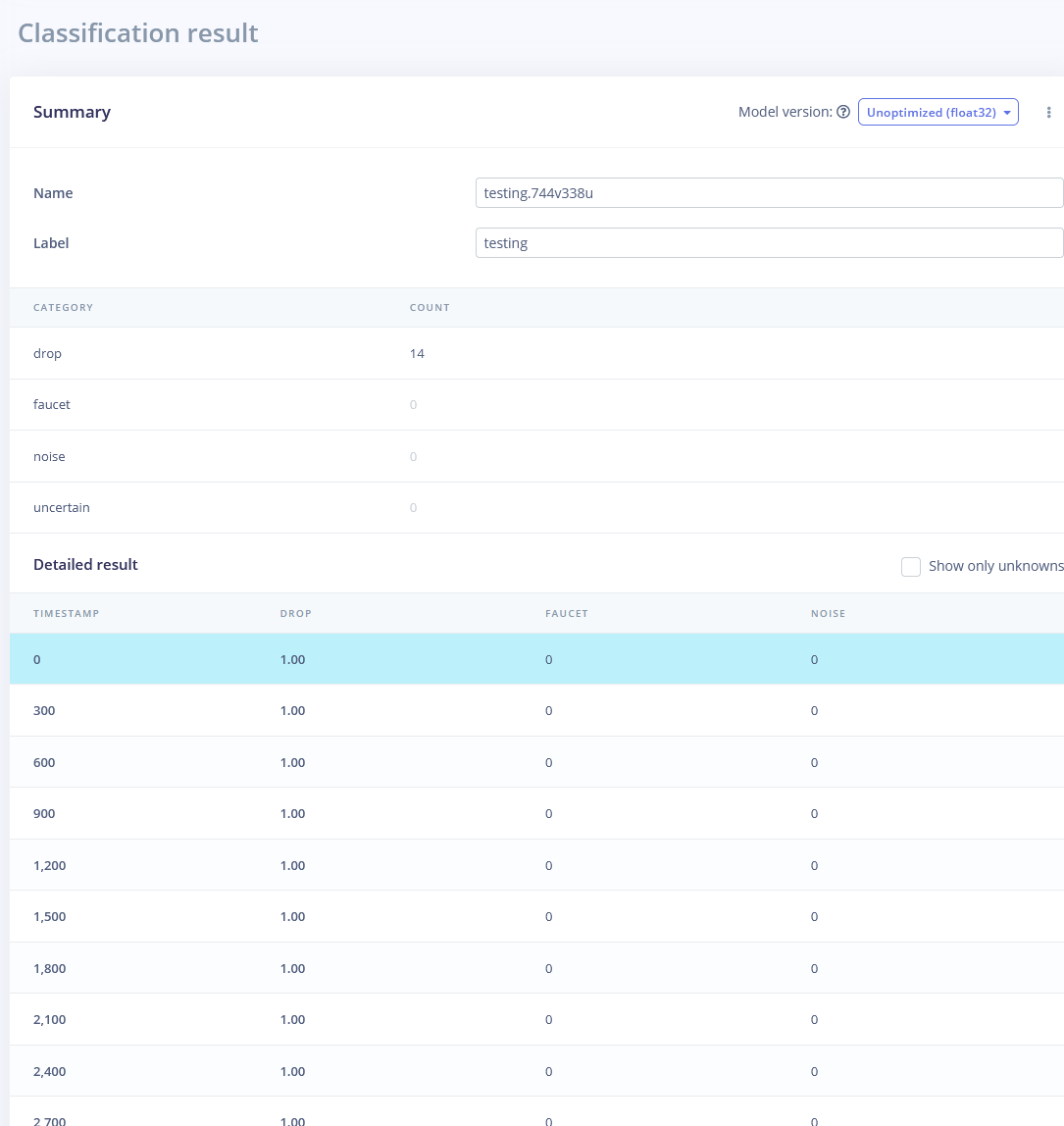
- Test with Live classification on a fresh Portenta recording of a quiet room. It should come back as
noise now.
Let us know which option works best for you!
 Job scheduled at 13 Oct 2026 15:28:36